
How to zip files with Bandizip
You can use Bandizip to zip a large (high-capacity) file in smaller files, or bundle several small files in one large file.
Run Bandizip
Run Bandizip → ① New Archive → ② Add... → ③ Select files to zip → ④ Open → ⑤ Archive Settings (Set the archive's name and path) → ⑥ Start → ⑦ Close
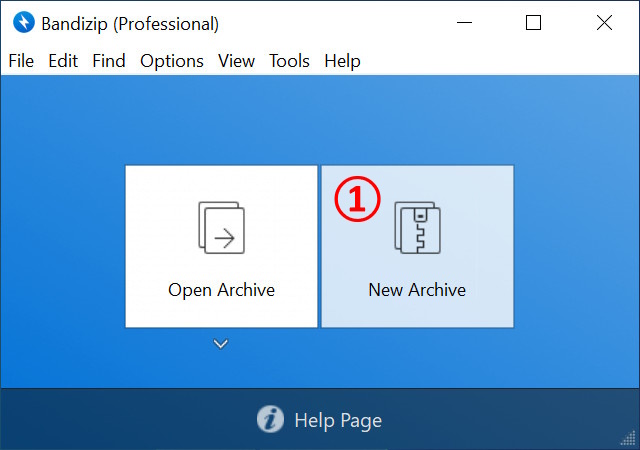
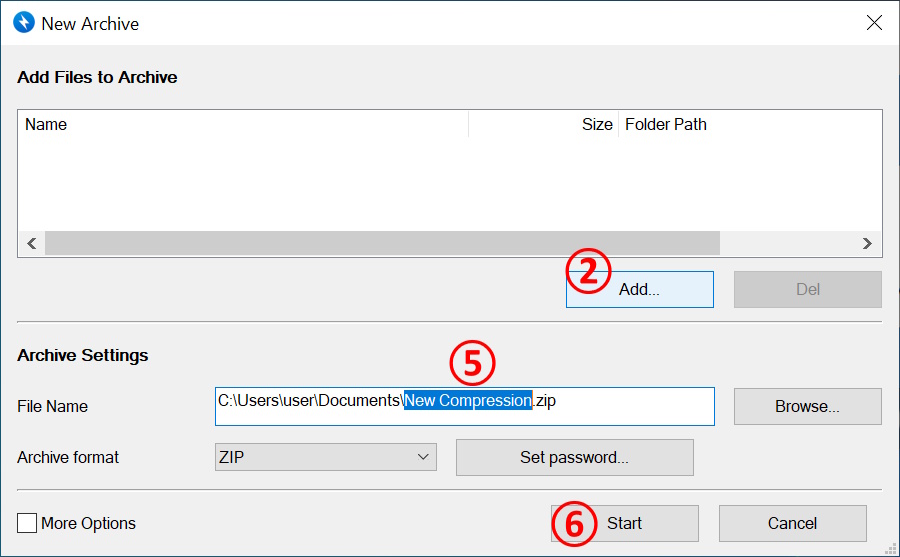
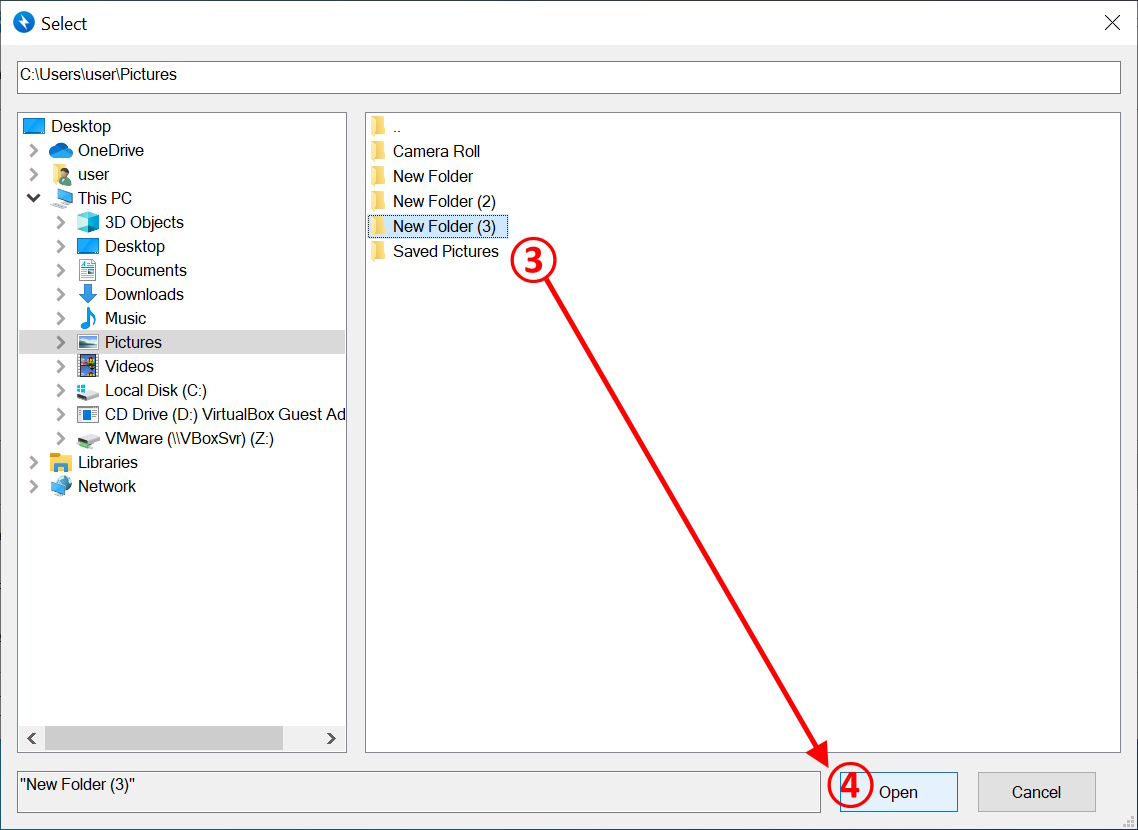
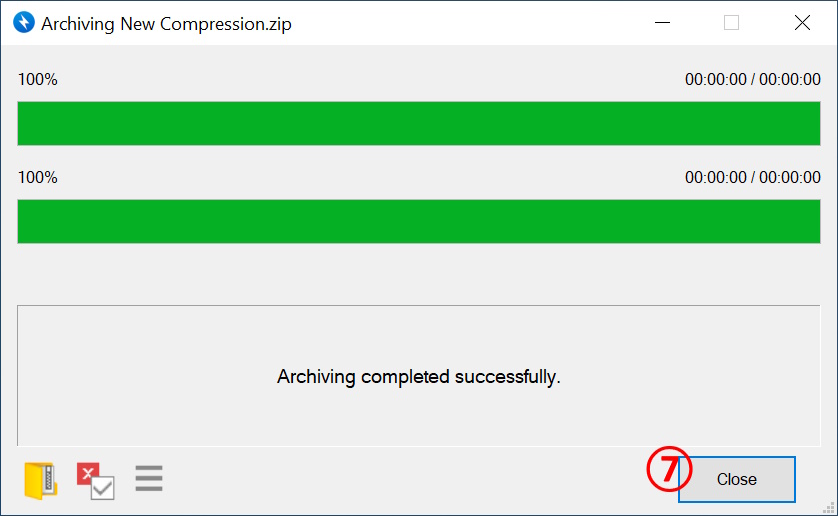
- Repeat step 2-4 to zip multiple files in a single archive.
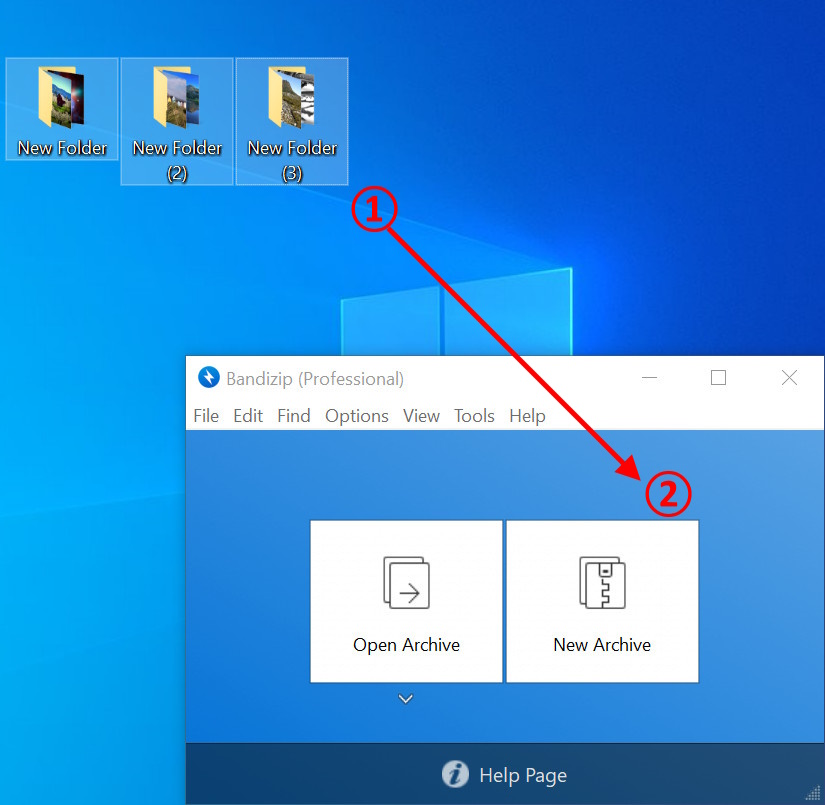
Drag & Drop files
Run Bandizip → ① Select files to zip → ② Drag and drop the files to Bandizip's windows → Archive Settings (Set the archive's name and path) → Start → Close
Use the right-click menu
① Select files to zip → ② Right-click the files → ③ Select one from the following
- Compress to "***.zip": Zip files to a single ZIP archive in the current path
- Compress to "***.7z": Zip files to a single 7Z archive in the current path
- Compress to each "***.zip": Zip each files in seprate ZIP archives in the current path
- Create archive (Bandizip): Run Bandizip
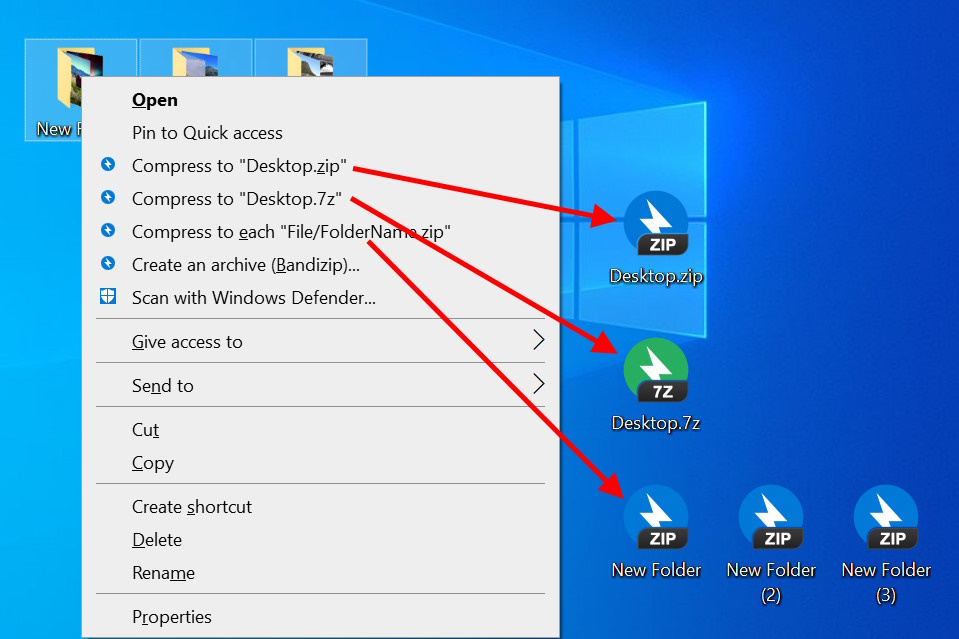
- Use the right-click menu to zip files and you have no need to set the archive's name and path.